How to Make an Electronic Business Card for Your Email Signature
An electronic business card for your email signature comes in two forms. Outlook can turn one of your contacts into a card and insert it in the signature: it is fixed once sent. A live card is a link to a published digital card, so every email shows your current details.
This article gives the steps for both, with Outlook and Gmail. If the terms are new, start with the guide to how digital business cards work, then come back here.
How to create an electronic business card
Before you pick a method, decide the job of the card. Three needs are common:
- Show your name, title and phone number under every email.
- Let the reader save your contact in one tap.
- Learn whether anyone opened the card.
Outlook's own card covers the first need. A live card link covers the first two, and with a Pro plan it covers the third in a limited way, as the last sections explain.
The two routes in short:
| Route | How it works | Updates |
|---|---|---|
| Outlook business card | A contact is saved as a card and inserted in the signature | Edit the contact and rebuild each signature |
| Live card link | A published digital card, linked from the signature | Edit the card once, every email shows it |
The steps for Outlook come next, then Gmail, then the live card.
How do I make an electronic business card in Outlook
Outlook has its own electronic business card. It is built from a contact in your address book, and it is inserted in a signature or attached to a message. The steps below follow the classic desktop version of Outlook:
- Open your contacts and create a contact for yourself, with your name, title, company, phone number and email address.
- Save the contact. Outlook builds a card from these fields.
- Open a new email, then open the signature settings: in the Insert tab, choose "Signature", then "Signatures".
- Create a new signature, or select an existing one.
- In the signature editor, choose the "Business Card" button and pick your own contact.
- Save. The card now appears at the bottom of the signature, in new messages and in replies if you set it so.
The recipient sees a small image of the card and, with it, a contact file they can open to save you. A reader who has images blocked sees only a placeholder, which is why many people add their phone number as plain text next to it.
The limits of this method are plain:
- The card is a snapshot. If your phone number changes, you edit the contact and rebuild the signature on each computer.
- It follows the version of Outlook. The new Outlook and Outlook on the web do not always offer the same button as the classic desktop version.
- You learn nothing about the reader. No view is counted.
Check the menu names in your own version, because Microsoft moves them from one release to the next.
How do you make an electronic business card for Gmail
Gmail has no business card tool. The practical answer is a signature with your details as text and a link to a card that lives elsewhere. The steps:
- In Gmail, open the settings with the gear icon, then "See all settings".
- In the "General" tab, scroll to "Signature" and choose "Create new".
- Name the signature and type your name, title, company and phone number.
- Select a short text, such as "Save my card", and use the link button to attach the address of your card.
- Choose when the signature appears, for new emails and for replies.
- Save the changes at the bottom of the page.
A signature copied from another page can usually be pasted into the editor. This is also how you reuse a signature written elsewhere. Send yourself a test email and open it on your phone, because a signature that looks right on a laptop can be too wide on a small screen.
Use a live card link in your signature
A live card is a digital card published at its own address. The signature carries a link to it. The reader taps the link, the card opens in the browser of their phone or computer, and they save your contact in one tap. They install nothing.
In Piktechs, you copy the link of your published card and paste it into the signature settings of your own mail client:
- In "My cards", click "Share" on the card and copy its link.
- In the signature editor of Outlook or Gmail, type a short label such as "Save my contact" and attach the link to it.
- Optionally, download the QR code of the card as an image from the same screen and add it to the signature.
Use the steps of the two sections above for the editor itself. The first part, creating and publishing the card, is in how to create a digital business card. A card must be published before its link works for someone else.
The main gain is maintenance. When your details change, you edit the card once and save. The link in every email you have already sent now opens the new version. You do not rebuild a signature, and you do not ask your contacts for anything. The article on how to update a digital business card walks through the steps.
On a team, each member has their own card and pastes their own link, and the brand kit keeps colours, logo and style the same on every card. This is a Team feature.
See how often your card is opened
With a Pro plan, analytics show card views, contact saves and new leads. They let you see whether the people who receive your emails open the card and save you.
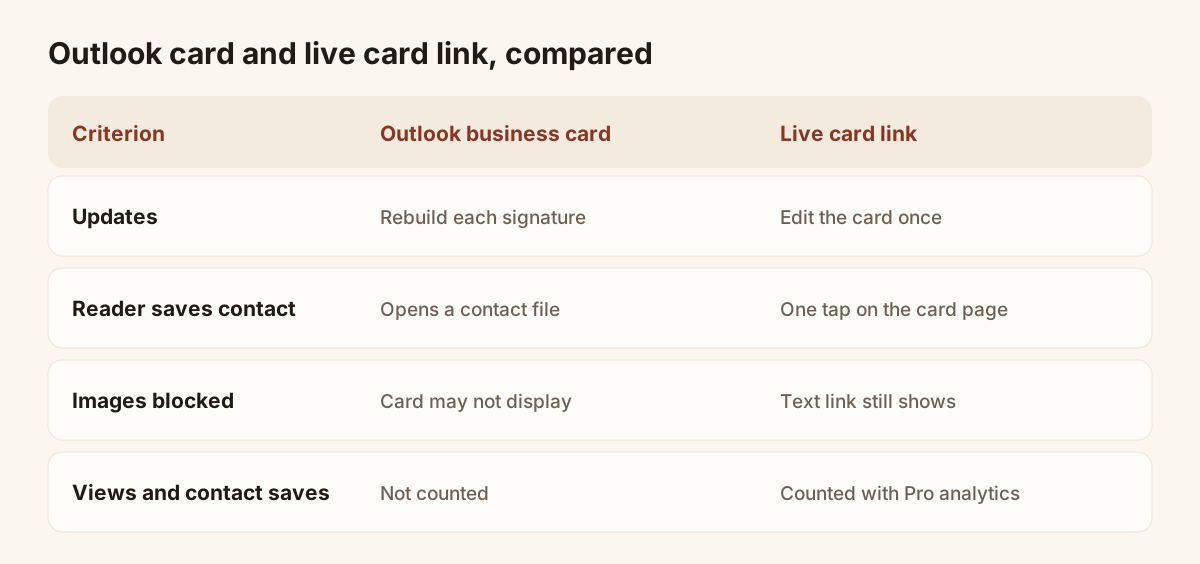
Outlook card and live card link, side by side.
Be clear about the limits. The analytics count views of the card, contact saves and new leads. They do not follow the path of one email, they do not name the reader, and Piktechs does not claim more. They answer a simple question: is the card opened and saved at all?
If you add a form to the card, a Pro and Team feature, a reader can leave their details and answer your questions. The lead then appears in your contacts list. The form is optional and you can leave it out for a signature meant only to share your details.
The signature is one channel among several. The article on how to share a digital business card lists the others.
Keep your signature short and readable
A signature does not have to carry every piece of information. A few rules that apply with Outlook, Gmail or any other client:
- Limit it to your name, title, company, a phone number and the card link.
- Write the link as text with a clear label, such as "Save my contact". An image link can be hidden by a blocked-images setting.
- Use one signature on new emails and a shorter one on replies, so a long thread does not stack the same block ten times.
- Keep the logo small. A large image slows the message on mobile.
- Test the signature on a phone, a webmail and a desktop client, then send it to a colleague.
For remote selling, the same link also works on a video call background and on LinkedIn. The article on how to create a virtual business card shows where to put it.
To try the live card with analytics, the digital business cards page lists the plans, and the Pro plan starts with a 14-day trial. You can compare plans on the pricing page.
Frequently asked questions
Is there an electronic business card in Outlook?
Yes, in the classic desktop version. You save a contact for yourself, then insert it with the "Business Card" button of the signature editor. The result is a fixed card: if your details change, you edit the contact and rebuild the signature. Check the button in your own version.
Can I add an electronic business card to a Gmail signature?
Gmail has no business card tool. Add your details as text and attach the address of a live card to a short label with the link button of the signature editor. The reader taps the link to open your card.
Does the recipient need an app to see my card?
No. The card opens in the browser of any phone or computer. The reader can save your contact in one tap.
Can I see who opened my card?
With a Pro plan, analytics show card views, contact saves and new leads. They do not name the reader and they do not follow one email. Without the Pro plan, the card works the same way but the numbers are not shown.
Is an electronic business card the same as a vCard?
No. A vCard is a contact file, the format your phone reads to save a contact. An electronic card is a display of your details. A live card link opens a page that also lets the reader download your vCard. The article on how to create a vCard gives the detail.
Read next
 Guide
How Do Digital Business Cards Work? QR Codes, NFC, Links and vCards Explained
QR code, NFC, link or vCard: see how digital business cards work, how contacts get saved on iPhone and Android, and how leads follow.
 Article
How to Create a Virtual Business Card for Email, Zoom and LinkedIn
Make a virtual business card you can share on Zoom, Teams, LinkedIn and email. Step-by-step guide with a free card and QR code tips.
 Article
How to Create a Digital Business Card (Step by Step, Free)
Create a free digital business card in 5 steps: pick a layout, add your links, share it by QR code or NFC. No app needed for the people you meet.
 Article
What Is a vCard? How to Create One (and Why a Digital Card Beats a .vcf File)
A vCard (.vcf) is a contact file. Learn how to create one by hand or with a generator, turn it into a QR code, and see where it falls short.
 Article
Digital Business Cards for Teams: Brand, Manage and Track Every Card
Roll out digital business cards to your whole team: one locked brand kit, roles, lead assignment and stats per card, from EUR 15 per seat.
 Article
Best Digital Business Card Apps, Compared Honestly
We compare the best digital business card apps on price, CRM sync, team features and GDPR, so you can pick the right one.
Scan your first card today
Pro includes Lead Scanner, forms and Contacts. 14-day trial.